
Turning a rambling family clip into a quick highlight reel should not feel like a chore. You want the funny part, the good moment, and the clean ending. That’s exactly what cutting and trimming do.
When you remove the slow bits, your video grabs attention faster. Also, it looks more intentional on TikTok, YouTube, and Instagram. You don’t need fancy gear or a paid editor to start, either.
CapCut is one of the easiest options for beginners right now. It feels simple, like you’re moving puzzle pieces. You can drag clips into the timeline, split them with a scissors tool, and fine-tune trim edges while you preview.
If you can click and drag, you can do this. Next, you’ll see why CapCut stands out, then follow a clean step-by-step workflow from import to export. By the end, you’ll be trimming like you’ve done it for years.
Why CapCut Stands Out as the Easiest Free Video Trimmer for Newbies
Some editors feel like they’re hiding the basics behind menus. CapCut doesn’t. It focuses on the core actions you need most often: cut, trim, split, and rearrange.
If you’re shopping around, it helps to know how CapCut compares to other common free tools. PCMag regularly reviews editors across platforms, which is useful when you want confirmation you’re not guessing. For a wider snapshot, see best video editing software picks.
Here’s the quick comparison for beginners:
| App | Best for | Ease of use | Platforms |
|---|---|---|---|
| OpenShot | Simple edits and learning | Very easy | Windows, Mac, Linux |
| CapCut | Shorts and social video trimming | Very easy | Windows, Mac, Web (and mobile apps) |
| iMovie | Basic cuts on Apple devices | Very easy | Mac, iOS |
CapCut is especially strong for social-first edits. You can keep your timeline tidy, fix mistakes quickly, and export in sizes that match common platforms.
A few reasons people stick with it:
- Beginner interface: drag-and-drop clips and clear timeline controls
- Fast cut workflow: split and trim without digging through tools
- Free editing with strong results: great for first exports and practice
- Works on many devices: Windows, Mac, and browser workflows for quick edits
If you want a download link straight from the official site, use CapCut Desktop Download. And if you’re also comparing OpenShot and iMovie, SoftwareSuggest has a helpful side-by-side view in March 2026 here: OpenShot vs iMovie comparison.
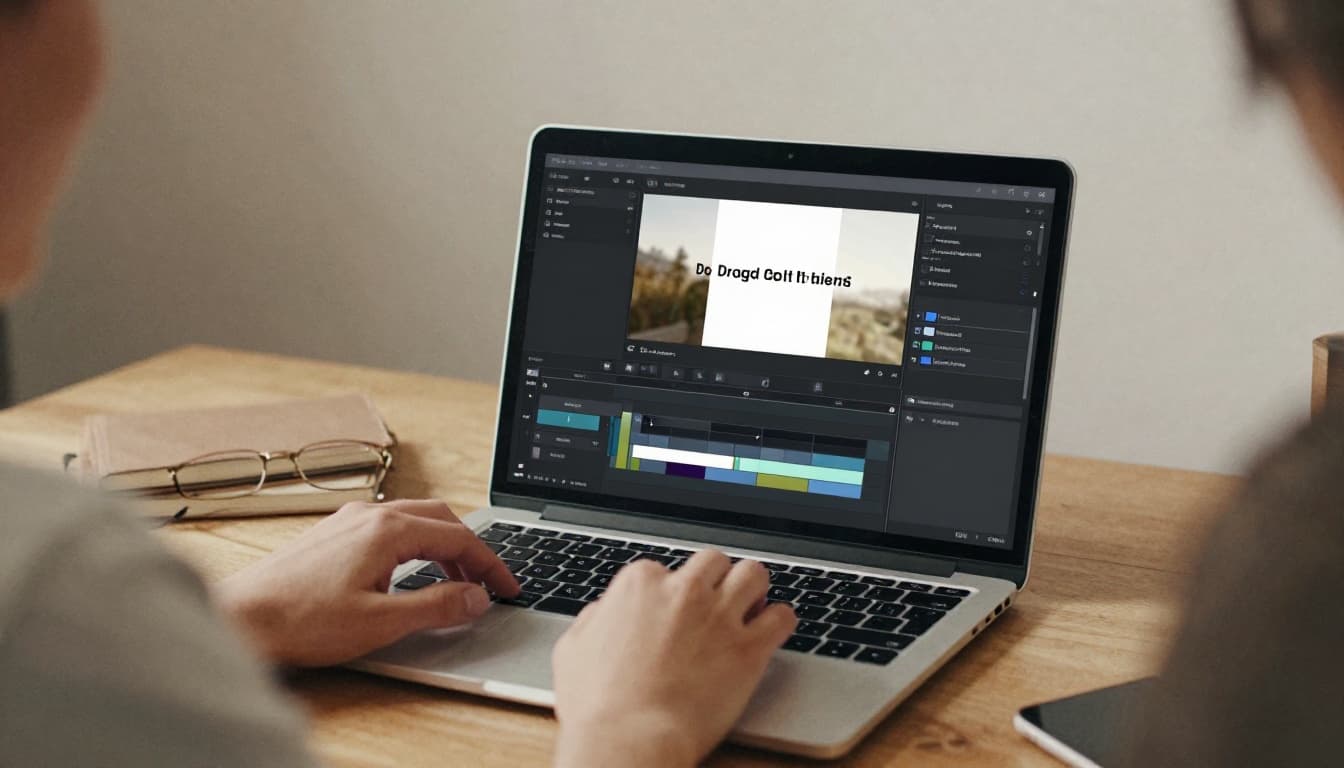
Follow This Simple Step-by-Step Process to Cut and Trim Videos in CapCut
Think of your raw footage like a pile of ingredients. Trimming removes the stuff you don’t need. Cutting and splitting helps you build the final dish in order.
So instead of jumping around, use the same flow every time. Import your clip, find the exact cut points, split, trim edges, remove junk, rearrange, then export.
Download CapCut Import and Drop Your Video on the Timeline
First things first, set up your project. CapCut should feel calm at this stage. You’re just getting the video into place.
- Download and open CapCut on your device.
- Start a new project.
- Import your video (click to upload, or drag the file in).
When your clip appears, drag it to the timeline at the bottom. CapCut snaps clips into the right lane. That matters because trimming and splitting depend on accurate timing.
After that, pause and test playback. Hit the spacebar to play or stop. Then use mouse scrubbing to jump through frames fast.
You’re not editing yet. You’re setting up a clean starting point. If your timeline looks messy, don’t panic. You’ll fix it after your first split.
Tip: if the video is long, zoom the timeline in. Then cut with more control.

Scrub to the Perfect Spot and Split Your Clip
Now you find the moments you actually want. Watch your clip like you’re looking for sentences that end too late.
When you reach the exact spot:
- Play the timeline and pause at your cut point.
- Tap the clip, then choose the Split option (the scissors tool).
- CapCut divides the clip into two parts immediately.
That split is your foundation. Everything else depends on it. Without a split, trimming is harder because you might only trim the ends of the whole clip.
Also, don’t rush. Zoom in on the timeline for accuracy. Then pause a few frames earlier than you think you need.
If your video has a clear “before and after” moment, split right at the change. For example, the second someone starts talking, or the instant the scene switches.
Trim the Edges for a Tight Clean Cut
Splitting gets you close. Trimming makes it look smooth.
- Click the segment you want to fix.
- Grab the left or right trim handle.
- Drag inward while you preview the change.
As you move the handle, the preview updates fast. So you can tighten the start until the audio sounds right. Then tighten the end so it stops cleanly.
Aim for this feel: no dead air, no repeated words, and no awkward ramp into a new scene.
If you struggle with trim choices, a helpful guide can keep you grounded. For extra clarity on trimming techniques, check out video trimming in CapCut.
Here’s a simple rule: if it feels like it takes too long to “get going,” trim more from the start. If it feels like it drags at the end, trim more off the back.
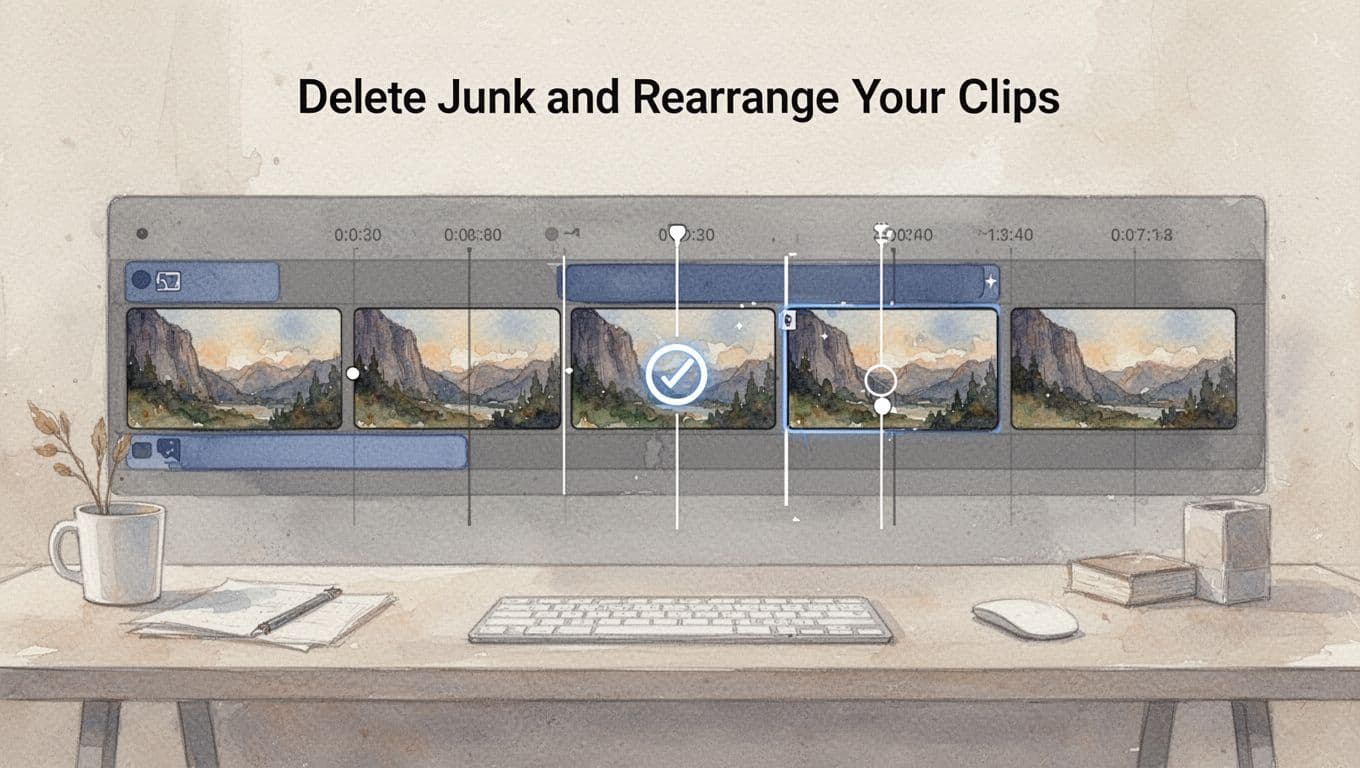
Delete Junk and Rearrange Your Clips
Once you split and trim, remove what doesn’t belong. Then reorder what’s left.
- Select the unwanted segment.
- Right-click and choose Delete.
- Drag the remaining clips to reorder them.
CapCut usually snaps clips into neat positions. That snapping helps keep your timeline tidy.
If you’re deleting a middle section, you might notice the timeline adjusts. That’s helpful because it removes gaps. If there’s a spacing issue, look for a delete option that closes the space, often called ripple delete.
Example: imagine a vlog where you talk, then walk into a room. You split out the walk sequence. Delete it. Now your talking starts right away in the final edit.
When you delete junk, keep checking audio. Sometimes the cut feels fine visually, but the sound jumps. Trimming a few frames usually fixes that.
If you want a step-by-step example of removing unwanted parts, this guide can help: cut out unwanted parts in CapCut.
Preview Everything and Export Your Finished Video
At this point, your edit should look almost done. Don’t export yet, though. Preview first like a viewer, not like an editor.
- Play the full timeline from the start.
- Watch for jump cuts, missing moments, and awkward pauses.
- Export when the flow feels right.
To export, open Export and pick a quality. For most social platforms, 1080p looks great. If your original video supports it, higher settings can help too.
Also, check format needs if you’re targeting specific platforms. Many creators post the same file everywhere, which is fine. Still, a quick check saves headaches.
One last tip: if you used lots of trimming, rewatch the first 3 seconds. That’s where viewers decide fast.
Handy Tips and Fixes to Avoid Beginner Blunders When Trimming Videos
Even quick trimming trips people up. Luckily, most mistakes have simple fixes. Here are the best video trimming tips that save time.
- Practice on a short clip first: get your “cut rhythm” before touching your main footage.
- Always preview after you split: splits can create tiny audio jumps.
- Don’t over-trim: if it feels rushed, undo and add a few frames back.
- Use undo when you mess up: press Ctrl + Z for Windows, or undo for Mac.
- If playback lags, zoom out: your computer might struggle with big previews.
- Add music and text later: trimming first keeps captions aligned with the right moments.
Gotcha: If your edit feels “almost right,” the issue is usually trimming edges, not the split point.
Stuck on lag? It can happen when you preview effects or high-resolution footage. Try exporting a quick test version, then watch it on your phone.
Also, keep experimenting. The more you cut and trim, the faster your eyes get at spotting dead time. Soon, you’ll know where the “good stuff” starts without even scrubbing much.
Conclusion
If you’ve been staring at a long video and thinking, “I’ll do this later,” stop waiting. Cutting and trimming is the easiest way to make your content feel intentional. With CapCut, the workflow stays simple: import, scrub, split, trim, delete, reorder, preview, export.
Now that you know the exact steps, your next edit should take minutes, not hours. Grab a clip you’ve already got, and try it today. If you run into trouble, share your biggest trimming question and what you’re working on.
Download CapCut and start editing now. Your first pro video is just minutes away.