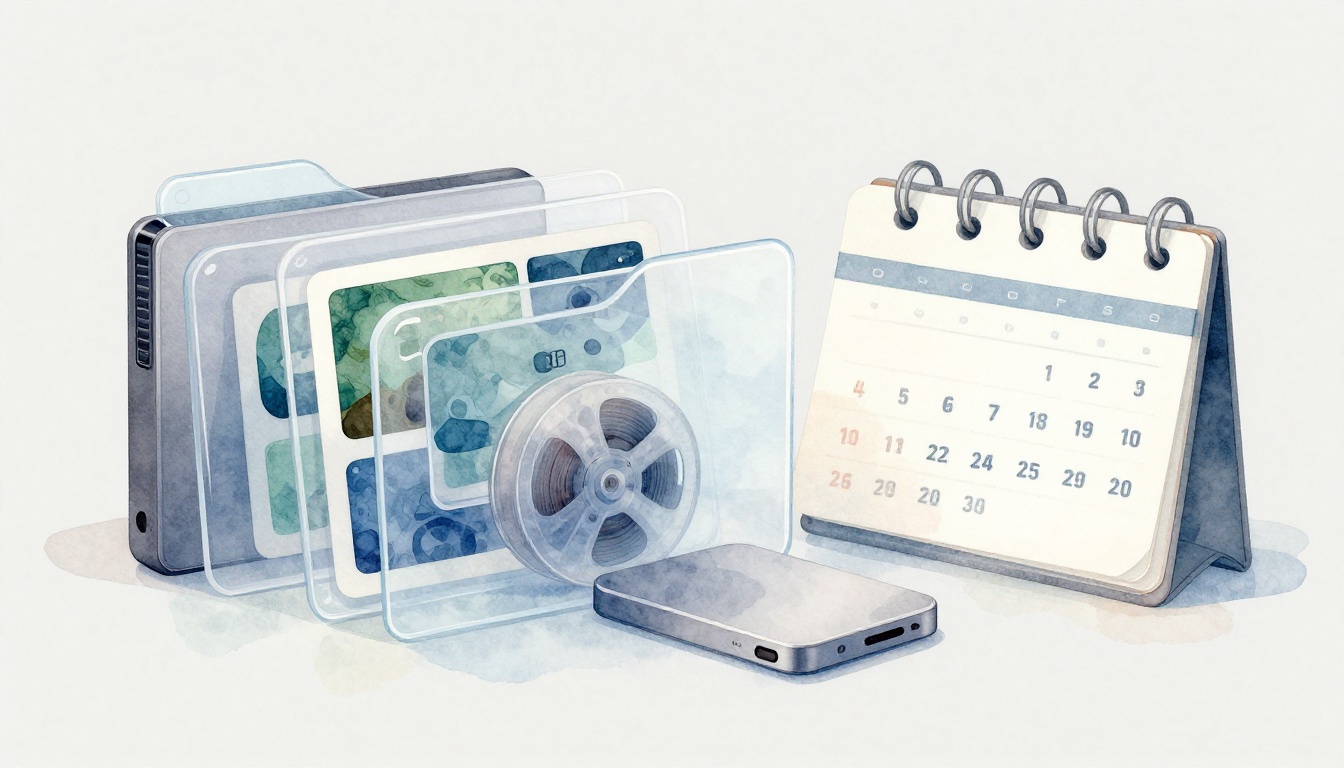
You know the feeling. You open your project folder, and the perfect clip is missing. Then you spend hours hunting while the deadline closes in.
That stress gets worse in 2026, because more teams and creators ship more video than ever. The US video production market is growing fast, and production tools keep getting easier to use. Meanwhile, 8K footage eats storage and version counts grow overnight.
If you want calmer edits and fewer “where is that file?” moments, these best practices for organizing video files will help. You’ll learn practical folder setups, naming rules that sort themselves, useful metadata, smart tools and backups, and the mistakes that silently wreck your workflow.
Now let’s get your files working for you.
Why Organizing Your Video Files Saves Time and Prevents Disasters
Organization isn’t “extra.” It’s the difference between editing and searching.
When your files follow a clear system, you find clips faster. You also reduce rework when someone needs the same asset you used yesterday. For example, a solo YouTuber can pull the right B-roll instantly because filenames and dates match the edit timeline. A team can share exports without confusion because everyone uses the same folder and version pattern.
The risk is real. Cluttered drives lead to data loss, overwrites, and broken handoffs. Even one messy folder can cause missed deadlines. You might export over the wrong take, or you might “fix” a timeline with footage you later can’t prove came from the right day.
And the scale keeps rising. AI tools and content demand push more people to create video. In 2025, US video production reached $31.24B, and reports project it growing sharply over the next years. More output means more assets, more versions, and more chances to lose track.
Also, 8K changes the math. One hour of raw 8K footage can be as large as 7.29 TB. When your storage and structure can’t keep up, your library becomes hard to manage. That’s why organizing is not just about neat folders. It’s about making your archive usable months later.
Your file system should help you edit faster today, and recover faster later.
Next, you’ll build a folder structure that makes searching feel automatic.
Build a Folder Structure That Makes Files Easy to Find
Think of your storage like a filing cabinet. If you dump everything in one drawer, you’ll dig for hours. If each drawer has a label, you can grab what you need in seconds.
Start with top-level folders that match how video projects work:
- Projects (your organized work)
- Raw Footage (camera originals)
- Audio
- Graphics
- Exports (deliverables)
- Optional: Screenshots, Sound Effects, Reference, Music License
Then, go deeper inside each project folder. A common pattern is date-based subfolders, like 2026-03-15_Shoots. Another pattern works too: client name and project code, like ClientName_ProjectCode. The key is that your structure explains the “why” behind the folder.
This approach also supports collaboration. When everyone drops files into the same place, you avoid that awkward moment where someone sends “final_final_REALFINAL.mp4.”
If you want more examples of professional folder templates, see video file folder structure best practices from DockBuddy.
Most importantly, keep Raw Footage separate from Exports. If you mix them, you’ll eventually overwrite something you meant to archive.
Tailor Folders for Your Workflow: Solo vs. Team Setups
Solo workflows can stay simple. A date-based structure often works best:
- Projects >
YYYY-MM-DD_ProjectName> Raw > Audio > Exports
That keeps your library predictable. It also makes it easier to back up, because you know what belongs to which shoot.
Teams need one extra layer: shared clarity. Add client names or project codes, plus a team-friendly rule for where reviewers look. For example:
- Projects >
ClientName_ProjectCode>YYYY-MM-DD_Shoots> Media
Also, avoid a flat structure where everything sits in one big folder. Flat libraries look fast at first, then become slow once you hit hundreds of clips.

Craft Naming Conventions That Sort Themselves
Folders help you browse. Naming conventions help you search.
A strong system uses a consistent starting pattern. The best default is:
- Date first using
YYYY-MM-DD - Then a short description
- Then take or angle info
- Then the extension (always included by your editor or camera)
Here are examples that tend to work well:
2026-03-31_MakeupTutorial_Angle1.movProjectX_2026-04-10_CafeInterview_v2.mp42026-03-15_Raw_Audio_LavTake3.wav
Notice how the date sorts chronologically in almost every file manager. Also, the descriptions stay short enough to scan quickly.
You’ll get better results by being consistent, not creative. If naming feels “too strict,” remember this: your future self hates surprises.
For extra naming ideas, formats, and common pitfalls, check video file naming convention best practices from MASV. It’s a practical reference when you want to tighten your rules.
A simple template you can copy and adapt:
YYYY-MM-DD_ProjectOrClient_SceneOrSubject_TakeOrAngle_Version.ext
When your names follow one pattern, your file manager becomes smarter. Sorting, searching, and exporting all get easier.
Handle Versions and Takes Without Confusion
Versioning is where chaos hides.
Use suffixes that show intent:
_v1,_v2,_v3for edit versions_take3,_take4for camera takes_finalonly when it’s truly final
If you add _final too early, people treat it like a destination. They stop checking. That’s when mistakes ship.
Here’s the contrast:
- Chaotic:
Interview_final2_FINAL(1).mp4 - Organized:
ProjectX_2026-04-10_CafeInterview_v2.mp4
Also, choose one rule for what “version” means. For example, version could mean “timeline export.” Or it could mean “editor’s save level.” Either is fine, as long as you don’t mix meanings.
Next, you’ll speed up searches even more with metadata.
Unlock Metadata for Lightning-Fast Searches
If folders and filenames are your map, metadata is your compass. It helps your editor and asset system find content fast, without you opening ten clips.
Metadata can include:
- Scene names
- Keywords (like “beach,” “kitchen,” “close-up”)
- Locations
- Speaker names
- Take numbers
- Notes about quality (good audio, alternate take, syncing issues)
Many tools already support metadata-like workflows. In editors such as Premiere Pro and Final Cut Pro, you can tag clips or store markers. For deeper search, media asset management tools can index your library so tags stay attached over time.
If you’re looking at “do I need a metadata editor,” Iconik explains why a media asset management system can matter when your NLE isn’t enough. See the best video metadata editors for 2026.
Here’s how it helps in real life. Imagine you have thousands of clips. Instead of sorting through dates, you search for a concept:
- “beach scene”
- “take 3”
- “speaker A”
- “kitchen b-roll”
That search should bring up exactly what you need. In other words, your library becomes readable without opening everything.
The goal isn’t to tag every frame. It’s to tag the moments that matter.
Also, metadata protects you when your project changes. If you later cut around a problem clip, you still find the right alternate take quickly.
Now let’s talk tools, storage, and backups, because organization fails without protection.
Choose Tools, Storage, and Backups That Fit 2026 Needs
Storage is the part people skip. Then a drive fails, and their “organized” system collapses.
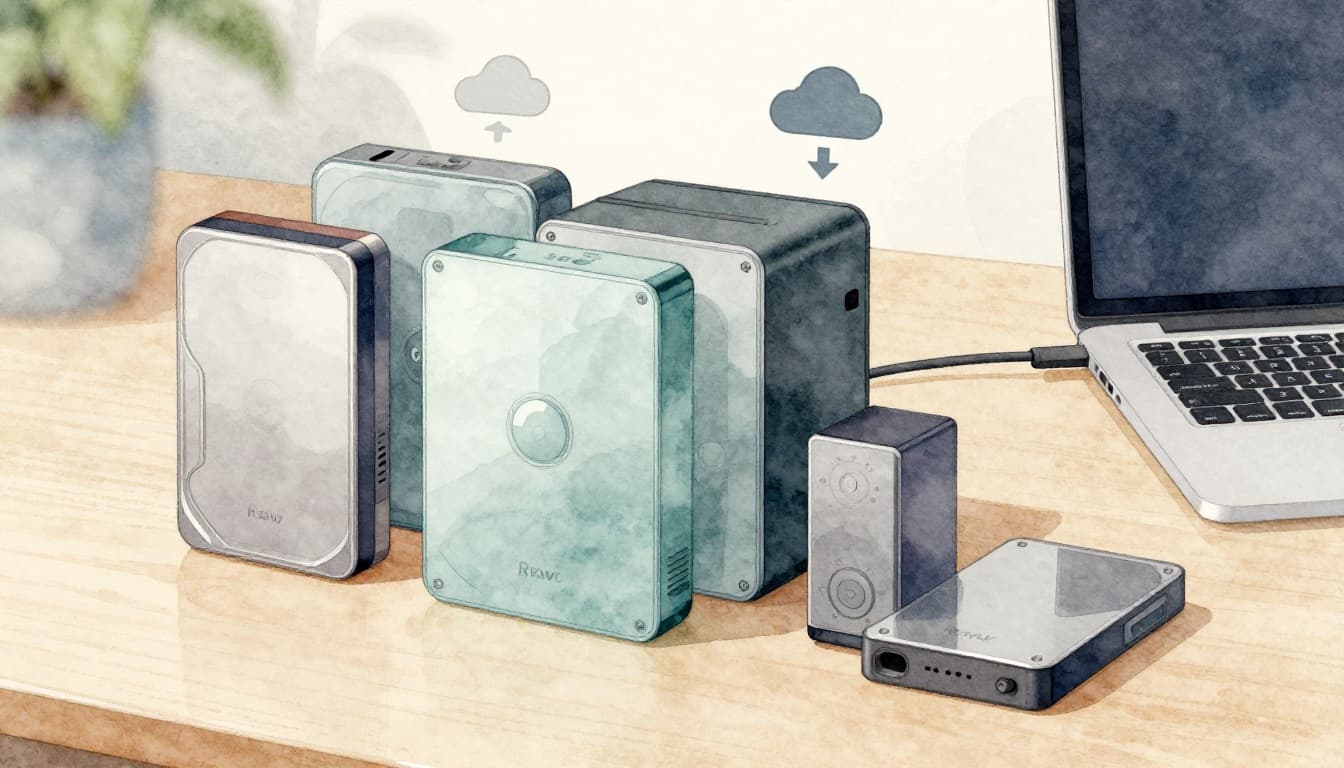
A solid 2026 setup usually has two layers:
- Local storage for speed (external drives, fast SSDs)
- Cloud or offsite storage for safety (sync or backups)
Start by labeling drives clearly. Use simple names like:
ProjectVault_RawProjectVault_Backup_01ProjectVault_Backup_02
Then build your backup plan around the 3-2-1 rule:
- 3 copies of your files
- 2 different local storage types (for example, two external drives)
- 1 offsite copy (cloud backup or another location)
If you work with teams, you also need a way to share files for review. You want access control, version handling, and clear delivery paths. To compare video collaboration options, check video collaboration tools for teams in 2026 from Fast.io.
Top Cloud Platforms for Team Collaboration
Cloud tools can help your organization stick across teams.
Some platforms focus on business-ready sharing and access controls. For example, enterprise video platforms often support:
- permissions (who can view or download)
- secure links (not everyone gets the same access)
- review workflows (track what changed)
- audit-friendly delivery
This matters because teams don’t all work in the same folder structure. A cloud system can act like a hub, keeping file roles clear (raw vs approved exports).
Budget Backup Strategies for Beginners
If you’re starting, keep it simple:
- Buy one reliable external hard drive for raw storage.
- Buy a second drive for backups.
- Turn on automated cloud sync for key folders.
Then upgrade as your library grows. Once your projects include heavy 8K timelines, you may need faster SSDs for scratch files. After that, look into more advanced setups like RAID for speed, plus scheduled cloud backups for safety.
If you want a broader view of file organization and asset systems, this guide from Vibbit is a useful starting point: video asset management complete guide 2026.
Steer Clear of These Common Organizing Mistakes
Even good creators fall into traps. The trick is catching them early.
Here are the most common mistakes that cause slow edits, broken handoffs, and lost work:
- Inconsistent file names: “final,” “final2,” “FinalFinal” might feel harmless. It leads to wrong exports later.
- Dumping files on the desktop: It feels fast, until a crash wipes the desktop.
- Skipping backups: One drive failure can undo days of work.
- Ignoring metadata: Your search becomes manual once your library grows.
- Mixing raw and edited files: Overwrites happen when originals sit next to exports.
- Using “_final” as a label: If you label too early, the team trusts the wrong file.
Quick fixes work better than big overhauls. For example:
- Pick one naming format and rename your next batch only.
- Create the missing top-level folders today.
- Move raw media out of your export folder as soon as you can.
- Turn on your cloud backup for the Projects folder.
If you’re tempted to “organize later,” remember this: later usually arrives with deadlines and stress. Today is when your motivation still exists.
Next, you’ll add 2026-ready upgrades like AI tagging and smarter cloud indexing.
Adopt 2026 Trends: AI and Cloud to Future-Proof Your Library
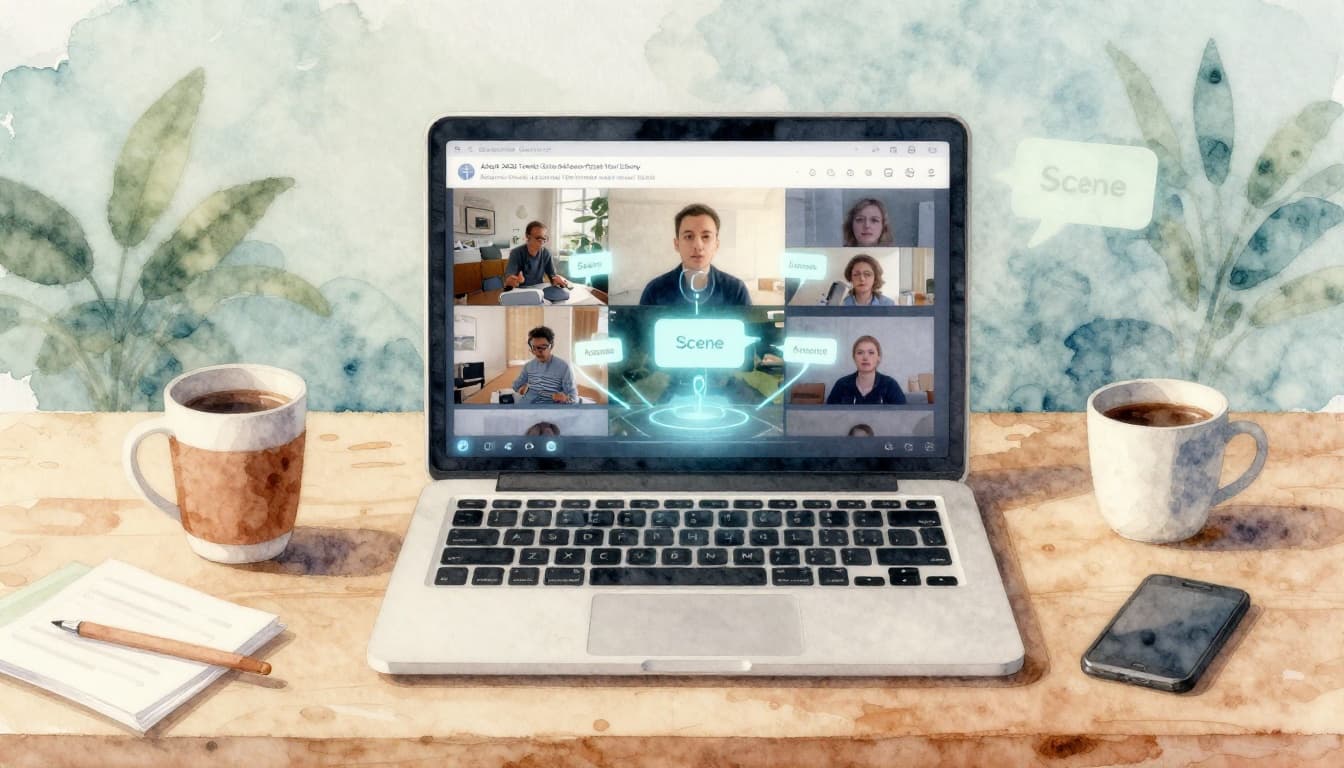
AI is starting to change organization. It can scan videos and auto-tag content like objects, scenes, actions, and events.
In early 2026, leading auto-tagging tools include Mixpeek, Google Video Intelligence API, Twelve Labs, Clarifai Video, and Azure Video Indexer. Many add tags that you can filter later. That means you can find “dog running in park” or “a person enters frame” without manually reviewing everything.
This doesn’t replace your naming and folder system. Instead, it reduces the busy work. You still set your structure and your version rules. Then AI fills in the searchable details.
Cloud also helps your system stay consistent. With the right setup, your folders and tags exist in one place, so teammates know where to look.
For teams handling massive 8K libraries, this matters. 8K storage grows quickly, and searching by eye becomes impossible. AI tagging and cloud indexing can help you locate the right clip even months later.
If you want a simple starting move, do this:
- Choose one project.
- Enable AI auto-tagging for that library (or trial it).
- Review tags once, fix what looks wrong, then keep going.
Small wins build trust. After that, you can scale your system across more projects.
Conclusion
The next time you lose a clip, you shouldn’t lose hours. The fix starts with best practices for organizing video files that make search, sharing, and backups predictable.
Build a folder structure that separates raw and exports. Then use naming that sorts by date and stays consistent. After that, add metadata (manually or with AI tools) so you can find moments fast.
If you want one easy change today, rename one folder and apply your naming pattern to your next import. What system are you using right now, and what’s the one rule you refuse to break?